How to Send Text Between Phone and Laptop
Use simple browser-based methods to send text between your phone and laptop quickly without extra apps.
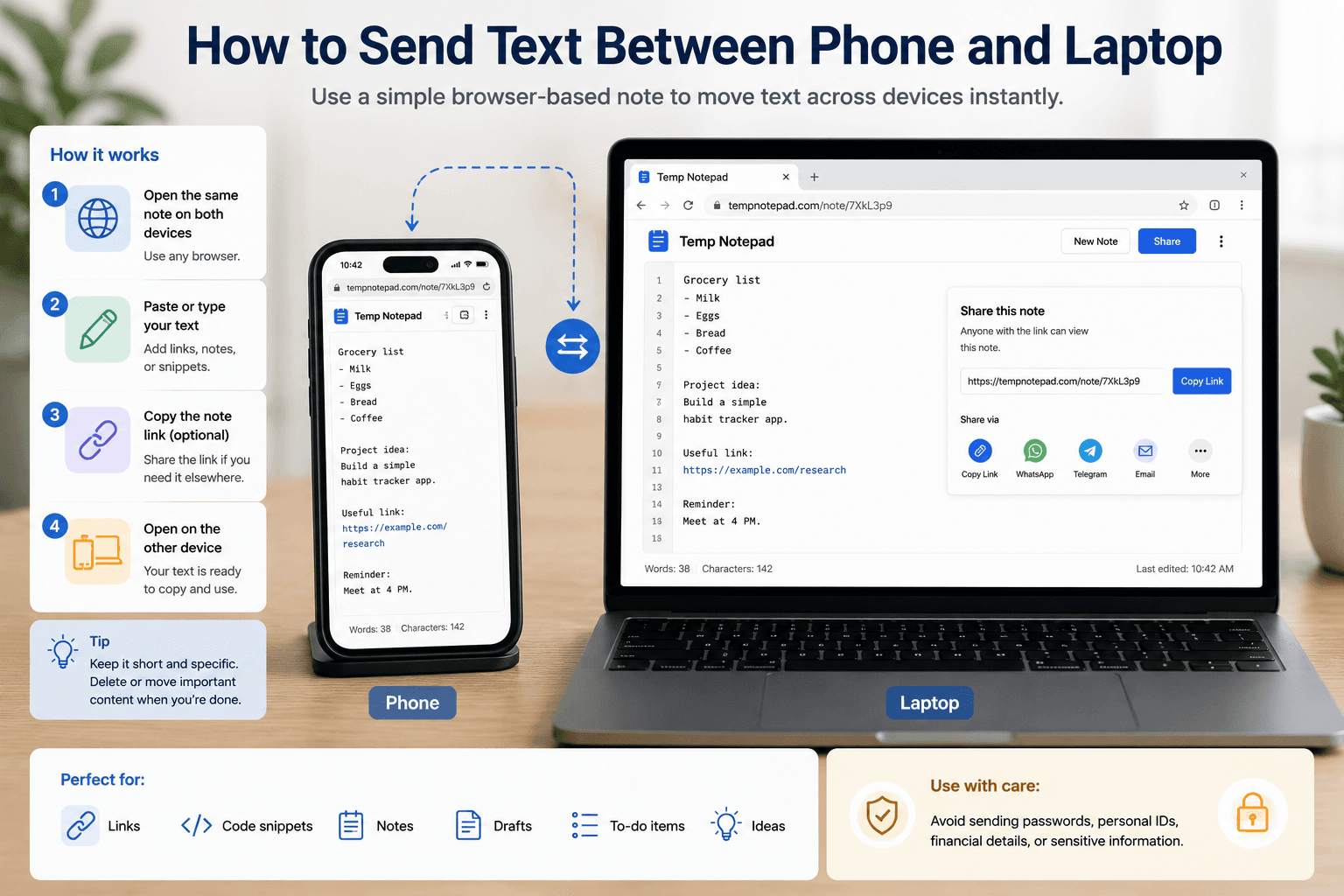
Sending text between a phone and a laptop is a very common need, especially when you are switching between study, work, or coding tasks. A browser-based note page is often the simplest answer.
Key takeaways
- Cross-device text transfer should be fast and simple.
- Browser-based notes remove the need for extra apps.
- This is useful for links, snippets, and rough text.
- Sensitive information should be handled carefully.
Why people need this
A lot of daily work begins on one device and ends on another. You may copy a link on your phone, draft a message on your laptop, or save a snippet during class and continue later.
The easier the transfer, the less time you lose in the middle of the task.
Why a browser method works
A browser notepad avoids app installs and account setup. You open the same note page on both devices and use it as a bridge for text.
That makes it practical for fast work, especially when the text is short and temporary.
What kind of text works best
This method is ideal for copied links, rough ideas, command snippets, class notes, names, or small drafts. It is not ideal for highly sensitive credentials or regulated personal information.
The lighter the task, the better the fit.
How to keep it efficient
Keep the page limited to the specific text you need to move. Once the transfer is complete, remove what is no longer needed or move important content into a more permanent system.
This keeps the tool useful instead of turning it into clutter.
Frequently asked questions
What is the easiest way to move text between phone and laptop?
One easy method is using a browser-based note page that you can open on both devices.
Do I need an app for this?
No. A simple browser workflow can be enough for many temporary text transfers.
Should I transfer passwords this way?
It is better to avoid moving sensitive credentials through a lightweight temporary note workflow.
Related articles
Try TempNotepad
Want to create and share a temporary note right away? Open the homepage and start writing instantly without signing up.
Open TempNotepad